
DSKY + Home Assistant: The Complete Setup Guide
Everything you need to connect your Apollo Replica DSKY to Home Assistant. Configure entities on DSKY registers, use Verb/Noun commands to control your smart home, set up automations, and troubleshoot common issues.
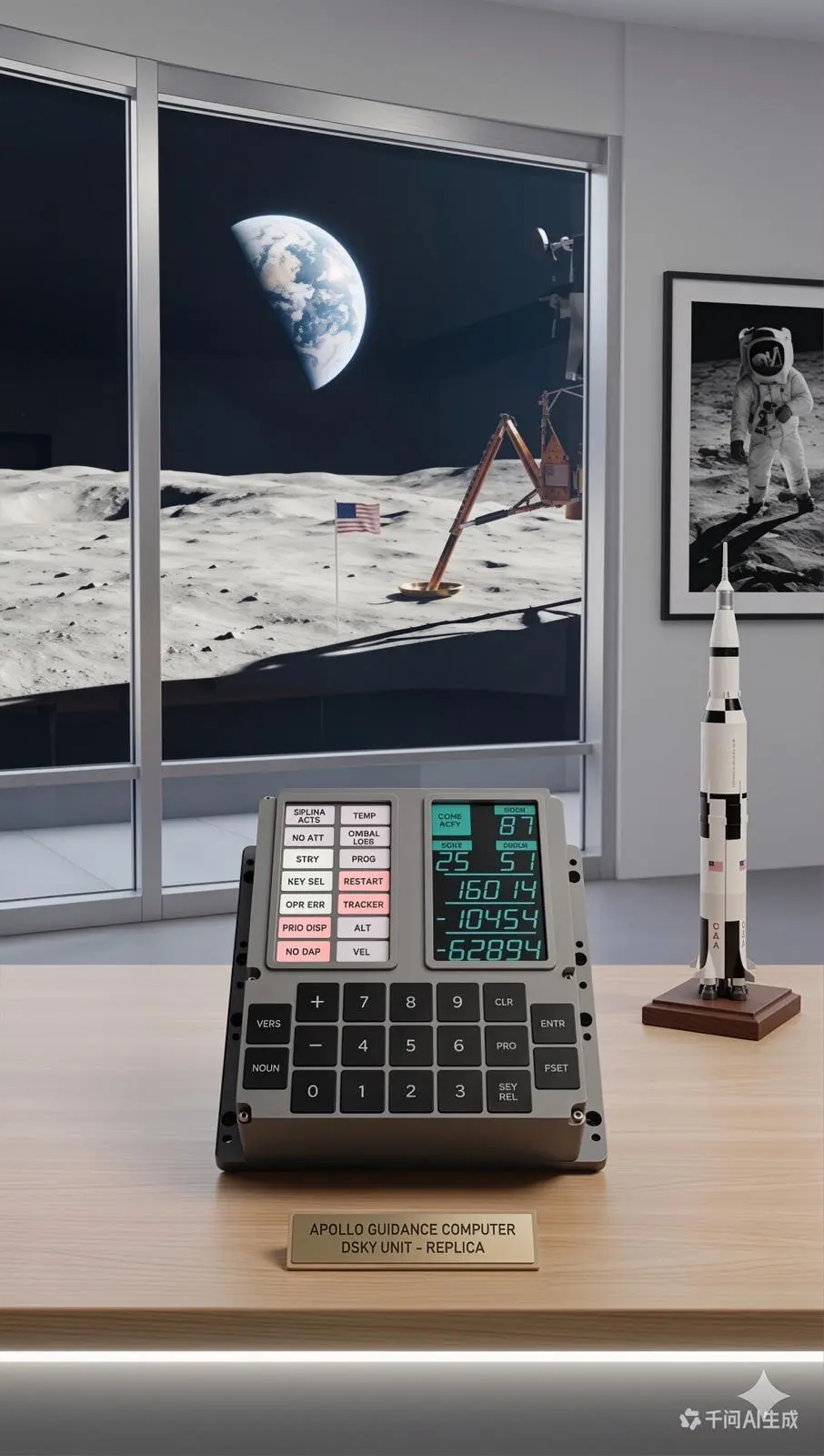
Your Smart Home Deserves a Better Interface
Most smart home interfaces are forgettable — a phone app here, a voice command there, maybe a wall tablet if you are feeling fancy. The Apollo Replica DSKY offers something radically different: a physical, tactile interface inspired by the most iconic computer display ever built. Instead of swiping through screens, you press real mechanical keys. Instead of reading tiny text, you watch seven-segment displays illuminate with your home data. Instead of saying "Hey Alexa," you type Verb 16 Noun 43.
This guide walks you through every step of connecting your Apollo Replica DSKY to Home Assistant, from initial setup to advanced automations.
What the Home Assistant Integration Does
The Apollo Replica DSKY integration turns your replica into a fully functional Home Assistant controller and display. Here is what it enables:
Display Home Assistant entities on DSKY registers. The three five-digit numeric registers (R1, R2, R3) can each show data from any Home Assistant sensor. Temperature, energy consumption, humidity, power usage, solar production, CO2 levels — if Home Assistant can measure it, the DSKY can display it.
Control devices with Verb/Noun commands. Just as Apollo astronauts used Verb and Noun codes to interact with the AGC, you can define custom Verb/Noun combinations that trigger Home Assistant actions. Toggle lights, activate scenes, arm security systems, lock doors — all through the DSKY keyboard.
Real-time updates via WebSocket. The DSKY maintains a persistent WebSocket connection to Home Assistant, so display values update in real time. When the temperature changes, the DSKY display changes. No polling, no delays.
Status indicators for home states. The DSKY's indicator lights (COMP ACTY, TEMP, PROG, etc.) can be mapped to home conditions. TEMP lights up when any room exceeds your comfort threshold. PROG indicates an active automation is running.
Prerequisites
Before you begin, make sure you have:
- A Apollo Replica DSKY replica (assembled and powered on)
- Home Assistant installed and running (version 2024.1 or later recommended)
- Network connectivity — both the DSKY and your Home Assistant instance must be on the same local network
- The Apollo Replica DSKY firmware updated to the latest version (check our GitHub releases page)
- HACS (Home Assistant Community Store) installed — the DSKY integration is distributed through HACS
Step 1: Install the DSKY Integration
The Apollo Replica DSKY integration is available through HACS:
- Open Home Assistant and navigate to HACS > Integrations
- Click the + Explore & Download Repositories button
- Search for "Apollo Replica DSKY"
- Click Download and restart Home Assistant when prompted
- After restart, go to Settings > Devices & Services > Add Integration
- Search for "Apollo Replica DSKY" and click to add it
- Enter your DSKY's IP address (you can find this in the DSKY's network settings menu using Verb 15 Noun 90)
Home Assistant will discover your DSKY and create a device entity with controls for the display, keyboard input, and indicator lights.
Step 2: Configure the Network Connection
The DSKY communicates with Home Assistant over your local network using WebSocket:
On the DSKY side: 1. Press Verb 21 Noun 91 Enter to enter network configuration mode 2. Register 1 shows the current IP mode (00001 = DHCP, 00002 = Static) 3. To set your Home Assistant server address, press Verb 22 Noun 91 Enter and input the IP address digits 4. The DSKY will confirm the connection with a brief flash of all display segments
On the Home Assistant side: The integration auto-discovers DSKY devices on your network via mDNS. If auto-discovery does not work, you can manually add the device by IP address in the integration configuration.
Verifying the connection: Once connected, the COMP ACTY light on your DSKY will blink periodically, confirming active communication with Home Assistant. You can verify the connection status in Home Assistant under Settings > Devices & Services > Apollo Replica DSKY.
Step 3: Map Entities to DSKY Registers
This is where the fun begins. The DSKY has three numeric registers (R1, R2, R3), each capable of displaying a five-digit signed number. You can map any numeric Home Assistant entity to any register.
In Home Assistant:
Go to the Apollo Replica DSKY device page and click "Configure Registers". For each register, you can set:
- Entity: The Home Assistant entity to display (e.g., sensor.living_room_temperature)
- Multiplier: A scaling factor (e.g., multiply by 10 to show one decimal place — 72.5F displays as 00725)
- Sign behavior: Whether to show the +/- sign (useful for temperature differences or energy flow direction)
- Noun code: The Noun number that selects this display configuration
Example configurations:
- Noun 43 — Climate Overview
- - R1: sensor.outdoor_temperature (multiplier: 10) — shows 00725 for 72.5 degrees
- - R2: sensor.indoor_humidity (multiplier: 1) — shows 00045 for 45%
- - R3: sensor.hvac_energy_today (multiplier: 100) — shows 01250 for 12.50 kWh
- Noun 44 — Solar Production
- - R1: sensor.solar_power_now (multiplier: 1) — shows current watts
- - R2: sensor.solar_energy_today (multiplier: 100) — shows kWh produced
- - R3: sensor.grid_power (multiplier: 1) — positive = importing, negative = exporting
- Noun 45 — Security Status
- - R1: sensor.open_doors_count — shows number of open doors
- - R2: sensor.open_windows_count — shows number of open windows
- - R3: sensor.motion_detectors_active — shows active motion sensors
Step 4: Define Verb Commands
Verbs define what action the DSKY takes. The integration comes with several built-in Verbs and lets you define custom ones:
Built-in Verbs:
- Verb 06 — Display decimal data in registers (monitor mode, continuous update)
- Verb 16 — Monitor display with automatic refresh (same as 06 but more frequent updates)
- Verb 21 — Enter data into a register (used for configuration)
- Verb 25 — Execute action (the primary command Verb for Home Assistant)
- Verb 35 — Test all display segments and lights
Custom Verb definitions:
In the Apollo Replica DSKY integration configuration, you can define custom Verb-Noun pairs that trigger Home Assistant services:
- Verb 25 Noun 50 — Toggle living room lights
- Verb 25 Noun 51 — Activate "Movie Night" scene
- Verb 25 Noun 52 — Arm the security system
- Verb 25 Noun 53 — Lock all doors
- Verb 25 Noun 54 — Toggle garage door
Each custom command maps to a Home Assistant service call. When you press Verb 25 Noun 50 Enter, the DSKY sends the command to Home Assistant, which executes the mapped service (e.g., light.toggle for the living room group).
Step 5: Configure Status Indicators
The DSKY's status lights can reflect your home state at a glance:
- COMP ACTY: Blinks when Home Assistant is processing an automation
- UPLINK ACTY: Lit when receiving data updates from sensors
- TEMP: Lit when any monitored temperature exceeds a threshold you define
- KEY REL: Lit when a manual override is active on an automated device
- OPR ERR: Briefly flashes when an invalid Verb/Noun combination is entered
- PROG: Lit when a long-running automation or script is executing
- STBY: Lit when Home Assistant is in away mode
- GIMBAL LOCK: Lit when your network connection quality drops below a threshold
Configure these mappings in the integration settings under "Indicator Light Mapping".
Automation Examples
The true power of the DSKY integration comes from combining it with Home Assistant automations:
Morning Launch Sequence
Create an automation that runs when you press Verb 25 Noun 60 Enter (your custom "Morning" command):
- Turn on kitchen lights to 70% brightness
- Start the coffee maker
- Set thermostat to daytime temperature
- Display weather data on the DSKY (Noun 43)
- Play morning news on living room speakers
The DSKY display shows "Program 60" in the PROG indicator while the sequence runs, and the registers cycle through weather data when complete.
Evening Reentry Sequence
Triggered by Verb 25 Noun 61 Enter:
- Close all blinds and curtains
- Set lights to warm evening preset
- Arm perimeter security sensors
- Display energy summary for the day on DSKY registers
- Lock exterior doors
Alert Display
Configure an automation that triggers when specific conditions are met:
- When smoke detector activates: Flash PROG light rapidly, display alarm zone in R1
- When doorbell rings: Flash UPLINK ACTY, display camera feed on nearby screen
- When washing machine finishes: Show cycle complete code in R1, blink COMP ACTY three times
- When energy price spikes: Light TEMP indicator, display current price in R1
Advanced: DSKY Programs
For users who want the full Apollo experience, you can define "Programs" — sequences of displays and actions identified by two-digit program numbers, just like the real AGC:
- Program 00: Idle — displays current time across R1, R2, R3
- Program 06: Climate dashboard — cycles through temperature, humidity, and energy data
- Program 11: Security overview — shows door/window/motion sensor status
- Program 60: Morning sequence (see automation above)
- Program 61: Evening sequence (see automation above)
- Program 62: Party mode — triggers entertainment lighting and music
Switch programs using the authentic Apollo command: Verb 37 Enter, then the program number, Enter.
Troubleshooting
DSKY display is blank after setup
- Verify the DSKY is powered on (the power LED on the rear should be lit)
- Check that the DSKY has a valid IP address (Verb 15 Noun 90)
- Confirm Home Assistant can reach the DSKY's IP address
- Restart the Apollo Replica DSKY integration in Home Assistant
COMP ACTY light is not blinking
- The WebSocket connection may be down
- Check your network — both devices must be on the same subnet
- Verify the Home Assistant URL in the DSKY's network configuration
- Check the Home Assistant logs for connection errors from the DSKY integration
Register values are not updating
- Confirm the mapped entities exist and have numeric state values
- Check the multiplier configuration — very large or very small multipliers can cause display overflow (shown as all nines)
- Verify the Noun code matches your register configuration
- Try Verb 16 (monitor) instead of Verb 06 for more frequent updates
Verb/Noun commands are not triggering actions
- Confirm you are pressing Enter after the complete Verb-Noun sequence
- Check the command mapping in the integration configuration
- Verify the target Home Assistant service exists and is functional
- Check for OPR ERR light — this indicates an invalid or unmapped command
Network discovery fails
- Ensure mDNS is not blocked on your network
- Try adding the DSKY manually by IP address
- Verify both devices are on the same VLAN/subnet
- Some routers block mDNS between wired and wireless clients — try connecting both devices via the same method
What Comes Next
The Apollo Replica DSKY integration is under active development. Features on the roadmap include:
- Voice-Noun mode: Speak a Noun name instead of remembering the number
- Multi-DSKY support: Run multiple DSKYs showing different data sets throughout your home
- Custom display fonts: Alternative seven-segment styles for different aesthetics
- Energy dashboard program: Dedicated program number for real-time energy monitoring with historical comparison
- Template registers: Use Home Assistant templates to compute custom values for display
Join our Discord community to request features, report issues, and share your DSKY + Home Assistant setup with fellow space enthusiasts. Every setup photo inspires us to keep building.
The Apollo astronauts used the DSKY to navigate between worlds. You can use yours to navigate your smart home — with the same elegant simplicity that took humanity to the Moon.